
AsterNOS-VPP GeoSite & GeoIP User Case
Overview
This guide walks you through configuring application-aware routing and security compliance policies using the GeoSite/GeoIP capabilities of the Asterfusion ET2500 Open Intelligent Gateway running AsterNOS-VPP.
By the end of this tutorial, you will have upgraded a basic routed network into an intelligent, application-aware gateway — one that makes routing and filtering decisions based on domain names (GeoSite) and geographic location (GeoIP), rather than IP addresses alone.
What This Guide Covers
Smart Traffic Steering (App-Aware Routing) Configure the gateway to identify application traffic (e.g., Baidu) and route it through a dedicated premium uplink, while keeping general traffic on the standard ISP line.
Security & Compliance (GeoIP Filtering) Deploy ACL-based policies to block access to specific content categories (e.g., media) and restrict access based on geographic origin (e.g., China IP ranges).
By completing this guide, you’ll configure:
By completing this guide, you’ll configure:
✅ Application-Aware Routing – Route Zoom/Office 365 to premium lines, YouTube to cost-effective paths
✅ Geo-Fencing – Block or route traffic based on country/region
✅ Precision QoS – Rate-limit streaming services while protecting video conferencing
✅ Content Filtering – Block media sites at wire-speed without DPI
Phase 1. Preparation & Environment Overview
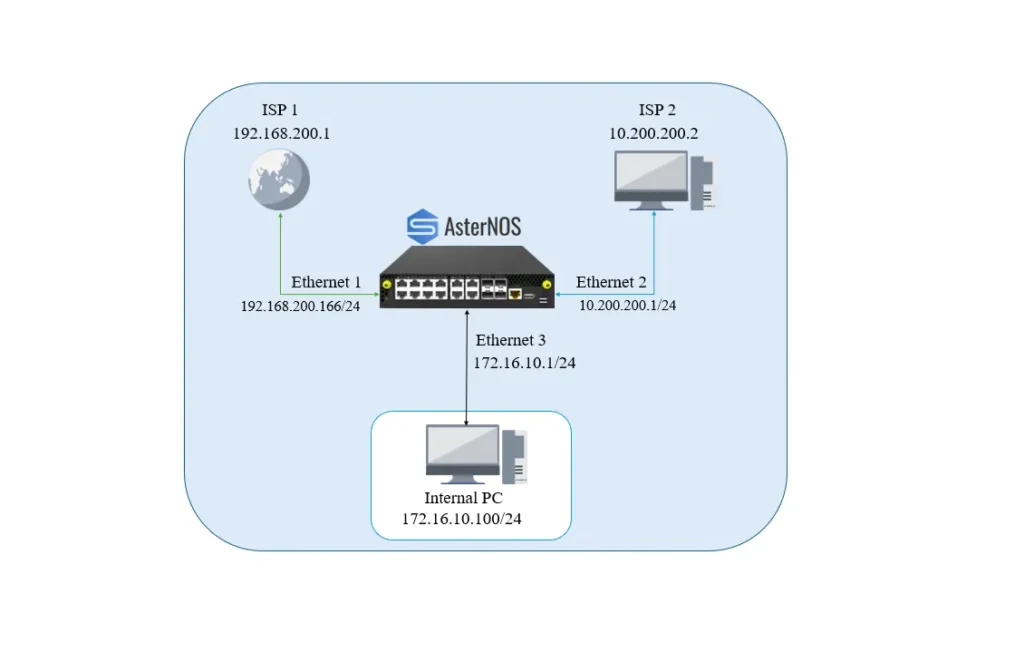
Network Topology
This guide uses a dual-uplink enterprise simulation with the following interface roles:
| Interface | Role |
| Ethernet 1 (WAN 1 / ISP) | Standard internet connection (upstream switch) |
| Ethernet 2 (WAN 2 / Premium) | Simulated low-latency line — connect a laptop here as traffic destination/analyzer |
| Ethernet 3 (LAN) | Internal user network gateway |
IP Addressing Plan
| Device / Interface | IP Address / Subnet | Gateway | Role |
| AsterNOS (Eth1) | 192.168.200.166/24 | 192.168.200.1 | WAN — ISP line (default internet access) |
| AsterNOS (Eth2) | 10.200.200.1/24 | 10.200.200.2 | WAN — Premium line (simulated path) |
| AsterNOS (Eth3) | 172.16.10.1/24 | — | LAN gateway |
| Laptop (Eth2) | 10.200.200.2/24 | — | Traffic analyzer (simulates premium GW) |
| Internal PC | 172.16.10.100/24 | 172.16.10.1 | Internal user |
Note: The laptop connected to Ethernet 2 must be manually configured with the static IP 10.200.200.2. It will capture traffic steered by the PBR policy. Install Wireshark on the laptop to verify traffic steering, and use ping or a browser on the internal PC to generate test traffic.
Phase 2. Building the Basic Network
In this phase, you establish physical connectivity and basic NAT services. Ethernet 1 is configured as the ISP link and Ethernet 2 as the premium link. Both interfaces have NAT enabled so internal users can communicate correctly with external networks.
Step 1. Configure the LAN Interface (Ethernet 3)
sonic# configure terminal
sonic(config)# interface ethernet 3
sonic(config-if-3)# ip address 172.16.10.1/24
sonic(config-if-3)# no shutdown
sonic(config-if-3)# exit
Step 2. Configure WAN Interfaces (ISP & Premium)
Both WAN interfaces are assigned their respective subnets and placed in NAT zone 1 to support outbound address translation.
# WAN 1 — ISP Line
sonic(config)# interface ethernet 1
sonic(config-if-1)# ip address 192.168.200.166/24
sonic(config-if-1)# nat zone 1
sonic(config-if-1)# no shutdown
sonic(config-if-1)# exit

# WAN 2 — Premium Line (connect laptop here with static IP 10.200.200.2)
sonic(config)# interface ethernet 2
sonic(config-if-2)# ip address 10.200.200.1/24
sonic(config-if-2)# nat zone 1
sonic(config-if-2)# no shutdown
sonic(config-if-2)# exit
Step 3. Configure Routing and NAT Rules
Set the default route to the ISP and define NAT pools for both uplinks, ensuring traffic on either path receives a valid source IP.
# 1. Default route — traffic uses ISP by default
sonic(config)# ip route 0.0.0.0/0 192.168.200.1

# 2. Enable global NAT
sonic(config)# nat enable

# 3. Define NAT pools
# Pool for ISP line (matches Eth1 IP)
sonic(config)# nat pool isp_pool 192.168.200.166

# Pool for Premium line (matches Eth2 IP)
sonic(config)# nat pool premium_pool 10.200.200.1

# 4. Bind NAT pools to rules
# Bind for ISP path
sonic(config)# nat binding SNAT_ISP ISP_POOL

# Bind for Premium path (steered traffic uses this pool)
sonic(config)# nat binding SNAT_PREMIUM PREMIUM_POOL
Phase 3. Smart Traffic Steering with PBR
Configure Policy-Based Routing (PBR) to identify Baidu traffic by domain (GeoSite) and force it through the premium line (Ethernet 2).
Step 1. Create the PBR Policy
The policy uses match src ip 0.0.0.0/0 to satisfy the flow key requirement, combined with geosite baidu for application identification.
sonic# configure terminal

# Create PBR map
sonic(config)# pbr-map SMART_STEER seq 10

# Match all source IPs (required for flow key)
sonic(config-pbr-map)# match src ip 0.0.0.0/0

# Match Baidu domain category
sonic(config-pbr-map)# geosite BAIDU

# Force next hop to the premium gateway (laptop)
sonic(config-pbr-map)# set nexthop 10.200.200.2
sonic(config-pbr-map)# exit
Step 2. Apply PBR to the LAN Interface
Bind the PBR policy to Ethernet 3, where LAN traffic enters the gateway.
sonic(config)# interface ethernet 3
sonic(config-if-3)# pbr-policy SMART_STEER
sonic(config-if-3)# exit

# Save configuration
sonic(config)# exit
sonic# write
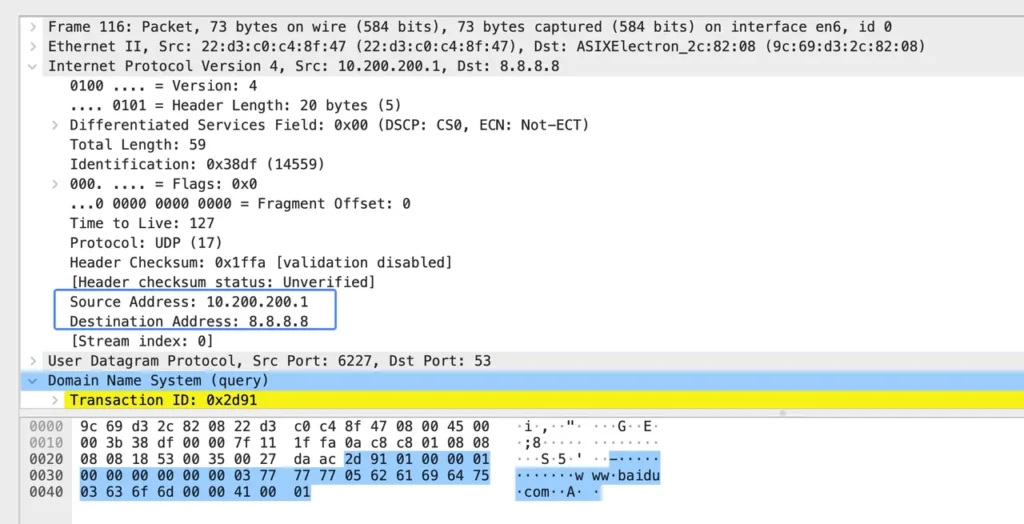
Verification: Generate traffic from the internal PC to a Baidu domain. Wireshark on the laptop (10.200.200.2) should capture the packets, confirming they were steered to the premium line.
Phase 4. Security & Compliance (ACL + GeoIP)
This phase shifts focus from routing to security. Before applying new policies, remove the Phase 3 PBR policy to avoid conflicts.
Prerequisites — Remove the PBR Policy
sonic(config)# interface ethernet 3
sonic(config-if-3)# no pbr policy SMART_STEER
sonic(config-if-3)# exit
Step 1. Create the Security ACL
Define an ACL named secure_acl applied in the inbound direction:
- Rule 10 — Blocks websites classified as “media” (e.g., BBC, CNN) using the GeoSite
category:mediatag - Rule 20 — Blocks all IP addresses geolocated in China (
cn) - Default — All other traffic is permitted
# Create the IPv4 Layer 3 ACL
sonic(config)# access-list L3 SECURE_ACL ingress

# Rule 10: Block Media Applications (e.g., CNN)
# We use the GeoSite category 'CATEGORY-MEDIA'
sonic(config-l3-acl-SECURE_ACL)# rule 10 geosite CATEGORY-MEDIA packet-action deny

# Rule 20: Deny Domestic Traffic (GeoIP: China)
# We use the GeoIP code 'CN'
sonic(config-l3-acl-SECURE_ACL)# rule 20 geoip CN packet-action deny
sonic(config-l3-acl-SECURE_ACL)# exit
Step 2. Apply ACL and Update NAT Binding
Apply the security ACL to the LAN interface and replace the global NAT binding with an ACL-based binding, so only traffic permitted by secure_acl is translated and allowed to reach the internet.
sonic(config)# interface ethernet 3
sonic(config-if-3)# acl SECURE_ACL
sonic(config-if-3)# exit

sonic(config)# no nat binding SNAT_ISP
sonic(config)# nat binding SECURE_BIND ISP_POOL SECURE_ACL
Step 3. Save Configuration
sonic(config)# exit
sonic# write
Verification
After saving, run the following checks from the internal PC:
1. Verify media block Access an international media site (e.g., www.cnn.com). The connection should fail or time out, matching Rule 10. Confirm on the CLI:
sonic# show counters acl2. Verify GeoIP block Access a China-hosted site (e.g., www.baidu.com). The connection should fail, matching Rule 20 (GeoIP cn — deny).
3. Verify normal access Access a non-media, non-CN site (e.g., www.gnu.org or stackoverflow.com). Access should succeed — the traffic does not match Rule 10 or Rule 20 and is permitted and NAT’d normally.
Summary
You have successfully transformed the AsterNOS-VPP gateway into an intelligent, application-aware edge device:
- Smart Routing — Traffic is steered by application identity (Baidu → premium line) using PBR + GeoSite
- Security Filtering — Traffic is blocked by content category (media) and geographic origin (CN) using ACLs + GeoIP
- NAT Scoping — Only ACL-permitted traffic is translated and forwarded, tightening the overall security posture
These capabilities are available across all commercial editions of AsterNOS-VPP.